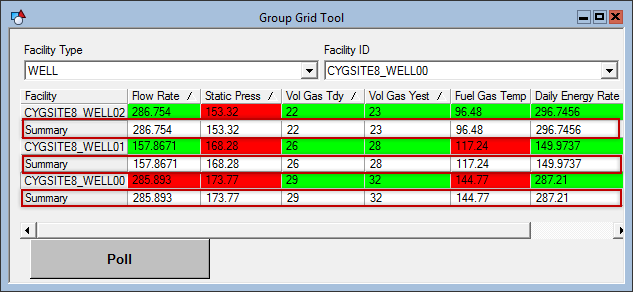
Group Grid Tool - Columns Page
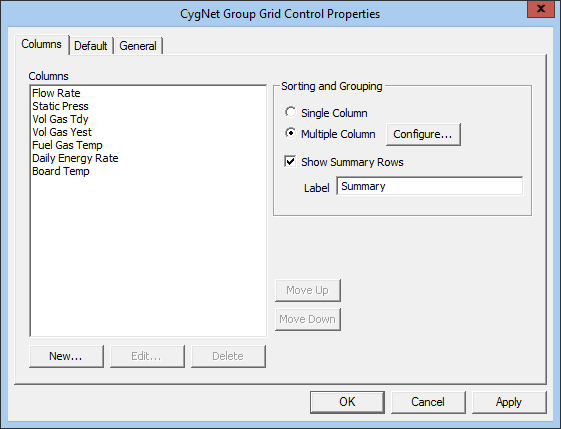
The Columns page is used to add, edit or delete columns from the grid. This page also specifies sorting and grouping settings. The column labels will appear in the grid from left to right in the same order they are listed in the Columns box.
|
Group Grid Tool - Columns Page |
Columns
| Property | Description |
|---|---|
|
New |
Adds a new column to the grid. See Column Configuration for more information. |
|
Edit |
Edits selected column. See Column Configuration for more information. |
|
Delete |
Removes selected column from the grid. |
|
Move Up |
Moves the selected column up in the list, which moves the column to the left on grid in Run mode. |
|
Move Down |
Moves the selected column down in the list, which moves the column to the right on the grid in Run mode. |
Column Configuration
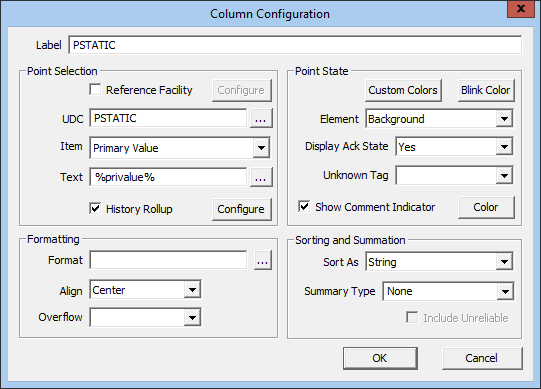
The Column Configuration box specifies the attributes of each column in the grid such as data to display, format, summary settings, etc.
|
Column Configuration |
Label
| Property | Description |
|---|---|
|
Label |
Specifies the heading for the column. This is a free-form text field with no character limit. |
Point Selection
| Property | Description | |
|---|---|---|
|
Reference Facility |
Specifies a reference facility for the column. Click Configure to set the reference facility filter.
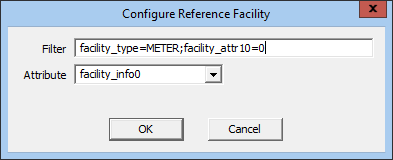
ExampleIn the above example, assume a reference facility is being configured for a Group Grid column with a facility set to "MYSITE.UIS::WELL1". By listing facility_info0 in the Attribute field, an initial request is made to "find all facilities with a facility_info0 attribute value set to MYSITE.UIS::WELL1". This initial request might return more than one facility (for example, multiple METER or TANK facilities). That’s where the Filter setting comes into play. In the above example, setting the Filter setting to facility_type=METER;facility_attr10=0 means "of the list of facilities returned in the initial request, set the reference facility to the one facility that is of "METER" type and whose attr10 value (defined as "Order in type") is zero." |
|
|
UDC |
Specifies the UDC for the column. Leave blank to use the grid default. |
|
|
Item |
Specifies the item to be displayed in each cell in the column. The default is Value. Any point configuration property, CVS record property, or facility attribute can be used. Leave blank to use the grid default. |
|
|
Text |
Specifies the text to be displayed in each cell in the column. The text can be dynamic, static, or a combination. Dynamic text is built using tokens, which can represent point configuration, facility, and CVS point record properties. Data formatting can be specified. See Using Text Tokens for more information about building dynamic text using tokens. |
|
|
History Rollup |
Specifies the historical rollup settings. Click the Configure button to set the history rollup. See History Rollups for more information.
Warning: The default offset is 1 second. To ensure your system does not overload with rollup data, carefully configure settings in the Time Adjustment options. Enter an offset suitable for the volume of data you anticipate receiving. See Date and Time Wildcards for information about using time wildcards.
|
Point State
| Property | Description |
|---|---|
|
Custom Colors |
Specifies custom colors for alarms for the cells. Leave blank to use the grid defaults. |
|
Blink Color |
Specifies the color that alternates with the alarm color when an unacknowledged alarm exists. Default is automatic. Leave blank to use the grid default. Note: Alarm blinking is available only for points created using the CygNet Enhanced Point Scheme (Point Scheme number 1 - 15). The blinking feature is not available for points created using the default CygNet Standard Point Scheme (Point Scheme number 0). |
|
Element |
Specifies if the alarm state is shown in the Foreground, Background, or not at all (None). Leave blank to use the grid default. |
|
Display Ack State |
Specifies if the tool blinks when an unacknowledged alarm exists. Leave blank to use the grid default. Note: Alarm blinking is available only for points created using the CygNet Enhanced Point Scheme (Point Scheme number 1 - 15). The blinking feature is not available for points created using the default CygNet Standard Point Scheme (Point Scheme number 0). |
|
Unknown Tag |
Specifies how you want to handle tags that are unknown. Options are Hide or None. |
|
Show Comment Indicator |
Specifies whether or not a small flag appears in the upper-right hand corner of the cell indicating there is a Comment in the point configuration record. When enabled a custom flag color may be chosen. Leave blank to use the grid defaults. |
|
Color |
Click to specify a color for the comment. |
Formatting
| Property | Description |
|---|---|
|
Format |
Specifies the display format of the data. See Properties for more information. |
|
Align |
Specifies the text alignment for the column. Default is Left. Other options are Right and Center. |
|
Overflow |
Specifies the behavior of text if the text is too wide for the column. Options are WordWrap and Ellipsis. |
Sorting and Summation
| Property | Description |
|---|---|
|
Sort As |
Specifies the data type by which to perform sorting. Options are: Numeric - Numbers are sorted from the smallest negative number to the largest positive number. String - When you sort string (alphanumeric) text, the sort is left to right, character by character based on the ASCII decimal representation. Apostrophes (') and hyphens (-) are ignored, with one exception: If two text strings are the same except for a hyphen, the text with the hyphen is sorted last. Date - Dates are sorted left to right based on the numbers in the date string. Default is String. See Sorting and Grouping for more information. |
|
Summary Type |
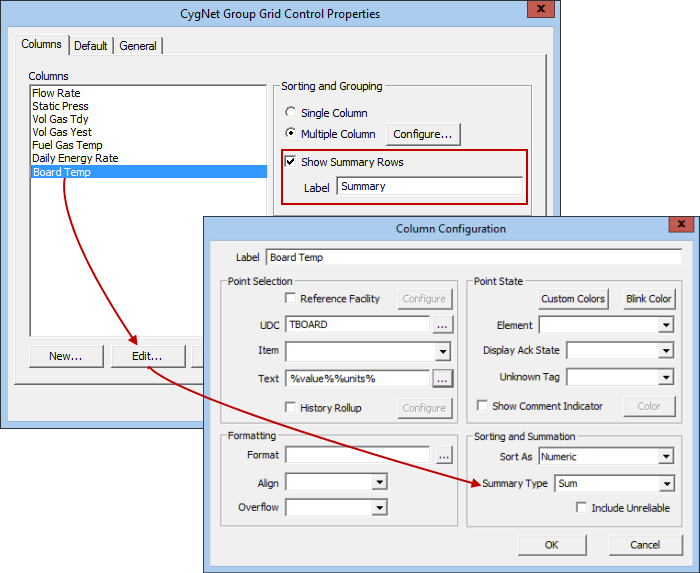
Specifies the type of summary for the column. Default is None. Other options are Count (number of items in the column), Sum (summation), Mean (average), Minimum (minimum value in the column), and Maximum (maximum value in the column). See Grid Summary Row for more information. |
|
Include Unreliable |
If enabled, data with the point status of Unreliable will be included in the summation. If the option is not enabled, unreliable data will be excluded from the summation. This option is only available if the Summary Type property is set to a value other than None. |
To Configure a Grid Column
- Show the properties for the Group Grid Tool object.
- Click the (OCXProperties) property on the ActiveX page in the object’s Property Sheet.
- Click on the Columns page.
- Click New.
- Define the properties for the column.
Warning: The default offset is 1 second. To ensure your system does not overload with rollup data, carefully configure settings in the Time Adjustment options. Enter an offset suitable for the volume of data you anticipate receiving.
- Click OK to save the column properties.
- Click OK to save the changes to the grid.
- Save the CygNet Studio file.
Sorting and Grouping
By default, the grid uses Single Column sorting. In Run mode, the rows are sorted by clicking on a column heading. The sort order toggles between ascending and descending. Empty cells will be sorted at the top for Ascending and bottom for Descending.
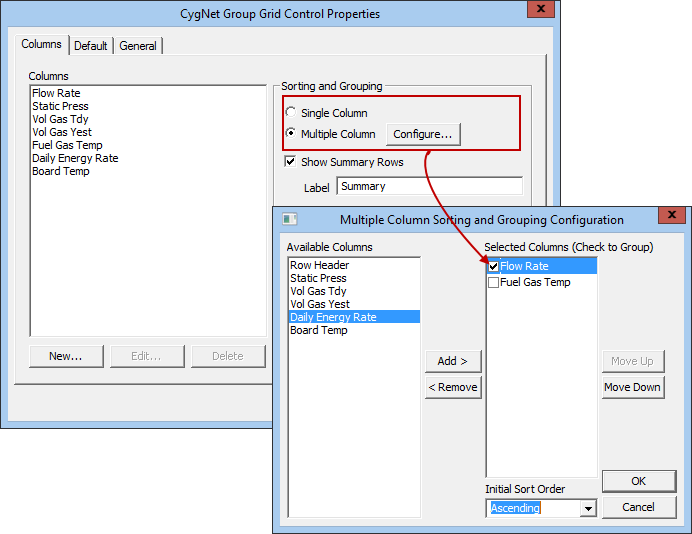
The grid can also be configured for Multiple Column sorting. This is also defined on the Columns page using the Sorting and Grouping Configure button. Row groupings can be defined when using multiple columns sorting. Any combination of grid columns can be used to sort data and group rows.
If the multiple columns sorting option is defined, users will not be able to click on a column heading to sort and/or reverse sort based on that column. They must use the Sort option on the context menu in the top, left cell to toggle the order columns based on Ascending or Descending.
If grouping is enabled the rows will also be grouped based on the data.
|
Sorting and Grouping |
To Configure Grid Multiple Column Sorting
- Show the properties for the Group Grid Tool object.
- Click the (OCXProperties) property on the ActiveX page in the object’s Property Sheet.
- Click to enable the Multiple Column sorting option.
- Click the Configure button.
- Select a column in the Available Columns box and click the Add button to add it to the Selected Columns list.
- The items are sorted based on the order they are listed in the Selected Columns box. To change the order, select an item and use the Move Up or Move Down button.
- To use the data in a column for grouping, click to select the box next to the column name in the Select Columns box.
Grid Summary Row
The grid object can be configured to include a summary row. This is enabled using the Show Summary Rows property in the OCXProperties dialog box (Columns page). In addition, each column in the grid must be configured for its type of summary.
|
Grid Summary Row |
| Summary Type | Description |
|---|---|
|
Count |
Number of items in the column. |
|
Sum |
Sum of all the items displayed in the columns. |
|
Mean |
Average value of the items displayed in the columns. |
|
Minimum |
Minimum value displayed in the column. |
|
Maximum |
Maximum value displayed in the column. |
By default, Show Summary Rows is not enabled and the Summary Type is set to None.
The number of summary rows depends on the column grouping. Each group will have its own summary row. In the example below, grouping is specified by individual rows. As such, each row has its own summary row.
|
Summary Row |